Chrome extension · works on any site

Turn any video into text. Even live streams.

Video Transcriber opens a panel next to the video. Read and search the transcript, transcribe the audio when there are no captions, and get a short AI summary with timestamps you can click.

  • Captions from YouTube, Vimeo and any HTML5 player that has subtitles: free, no limits
  • AI transcription for videos without captions and for live streams
  • A short summary and key points with clickable timestamps, in 52 languages
  • No sign‑up
  • 2 free AI uses
  • Chrome 138+
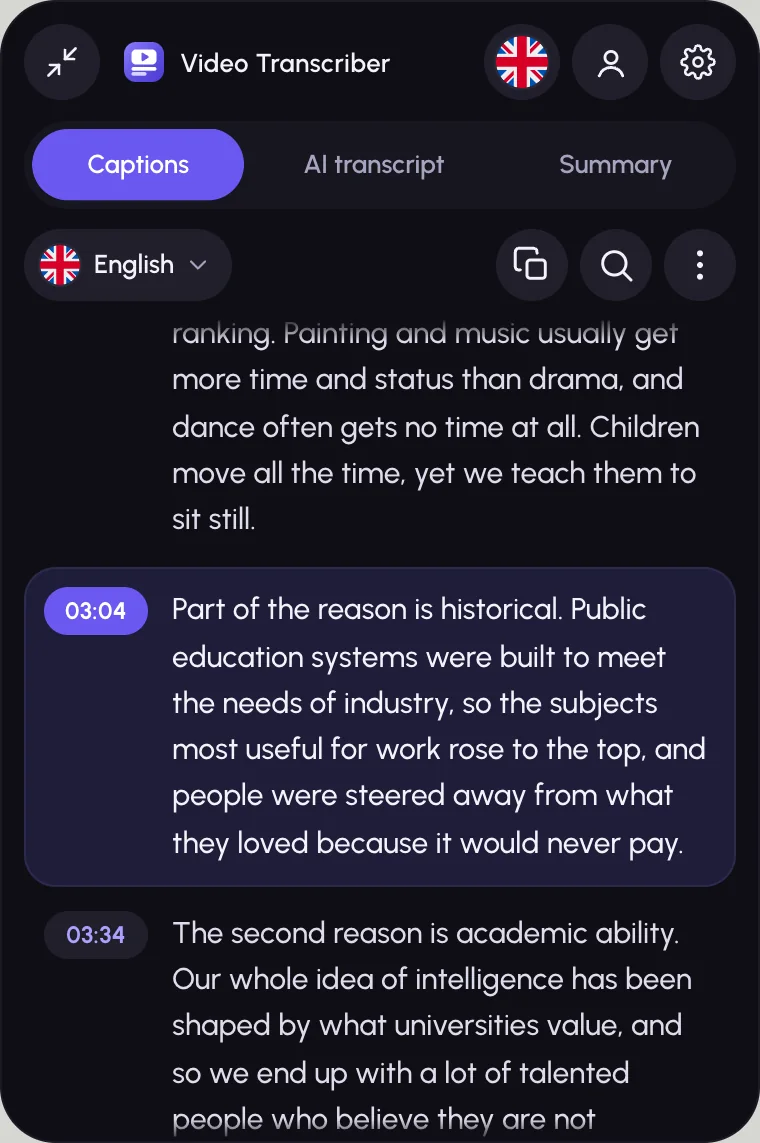
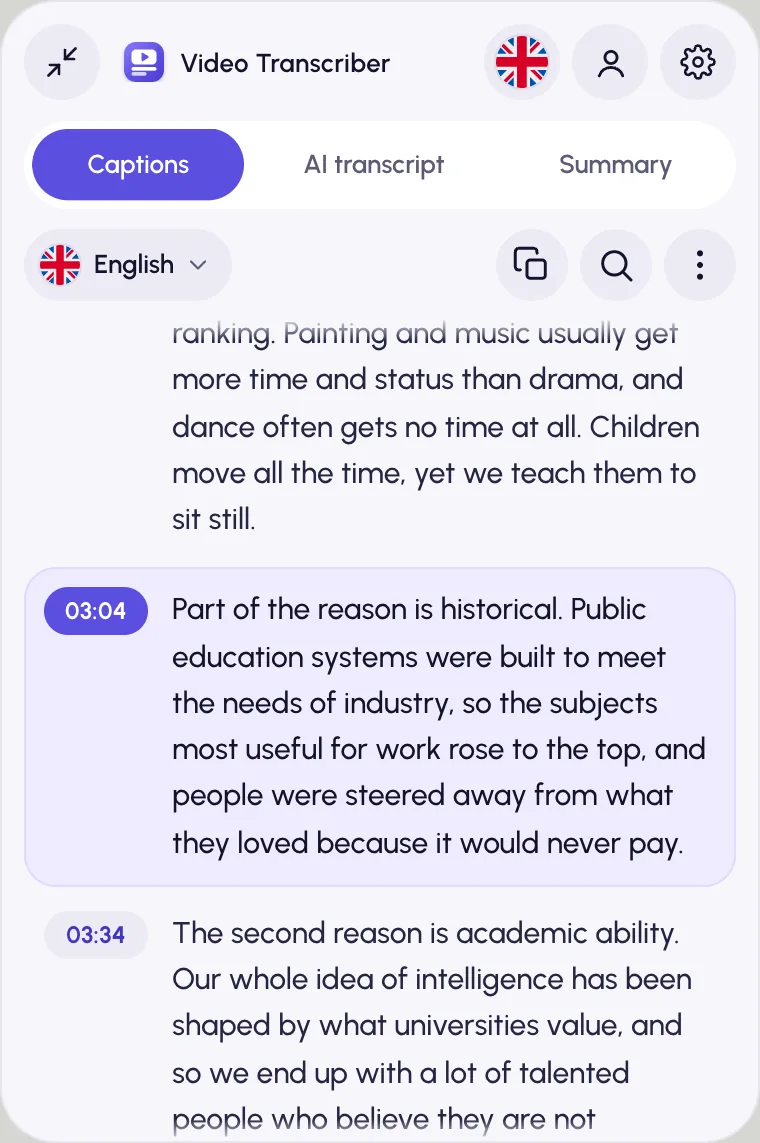
The Video Transcriber panel next to a video: tabs Transcription, Pro Transcription and Summary, transcript paragraphs with timestamps
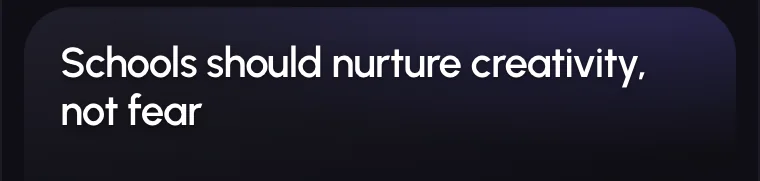
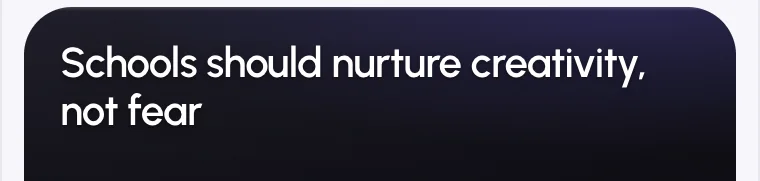
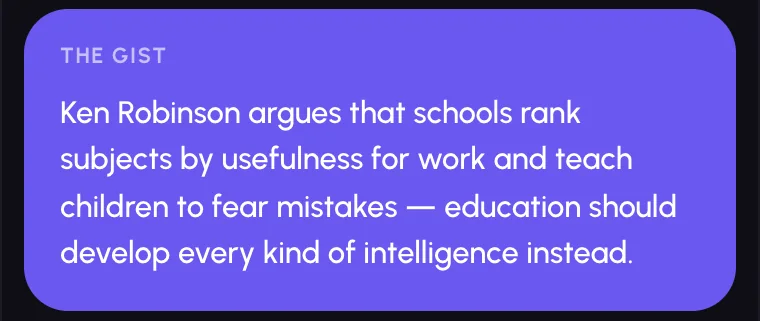
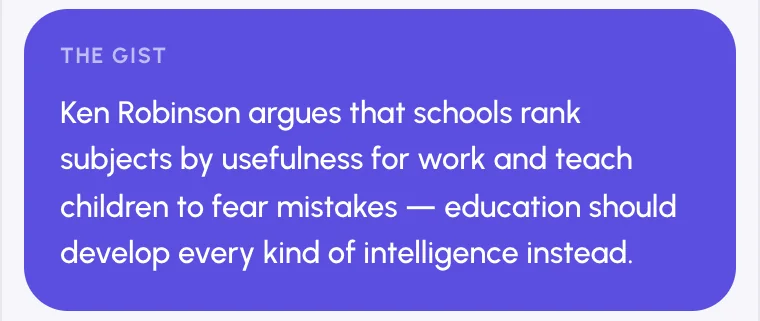
An AI summary card: a headline, a short summary and key pointsAn AI summary card: a headline, a short summary and key points

Works where you watch

  • YouTube
  • Twitch
  • Vimeo
  • Kick
  • Course platforms
  • Webinars
  • Any HTML5 player
  • Live streams

DRM-protected players (such as paid movie streaming) do not allow audio capture, so Pro Transcription cannot run there.

Features

Everything the video says, as text you can use

Three tabs next to the player: the captions, a transcription of the audio, and a summary.

Transcription · free

The captions, as readable text

When a video already has captions, the Transcription tab shows them as clean paragraphs next to the player. Pick a caption track, and on YouTube translate it into any language YouTube offers.

  • Paragraphs follow the video and scroll along
  • Switch caption tracks
  • Free, not counted as a use
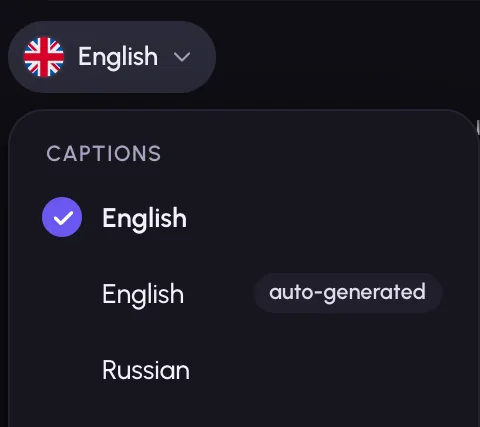
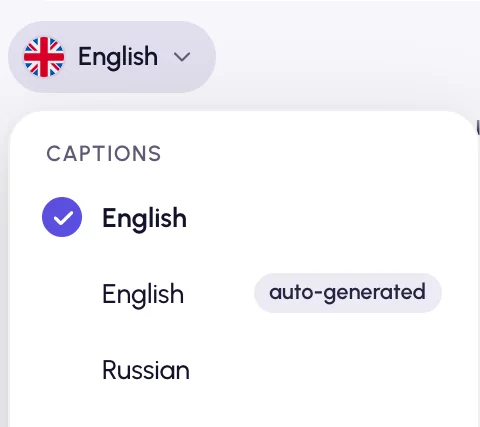
Caption track menu with English, Spanish and Russian tracks and a Translate to listCaption track menu with English, Spanish and Russian tracks and a Translate to list
Pro Transcription

No captions? Transcribe the audio

Pro Transcription turns the whole video into text in a couple of minutes, with no need to play it. Live streams are transcribed as they play. It works on any site with an HTML5 player.

  • Chrome speech recognition. Used by default, nothing to set up. Runs on your device when Chrome has the language, otherwise through Google’s speech service.
  • Local Whisper. Steps in on its own when Chrome can’t recognize the video. Runs on your computer after a one-time model download.

Keep the player unmuted while transcribing. For some videos, Chrome asks for one click on the extension icon (or Alt+Shift+T) before it can capture the tab’s audio.

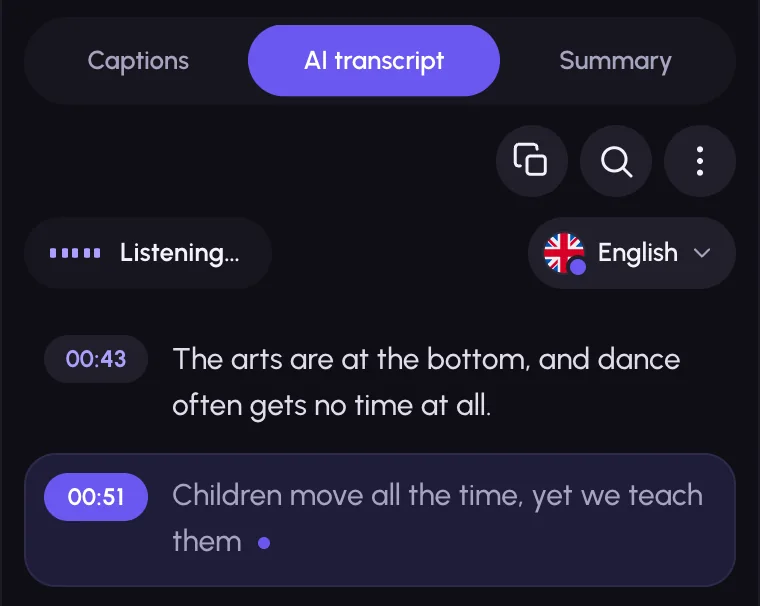
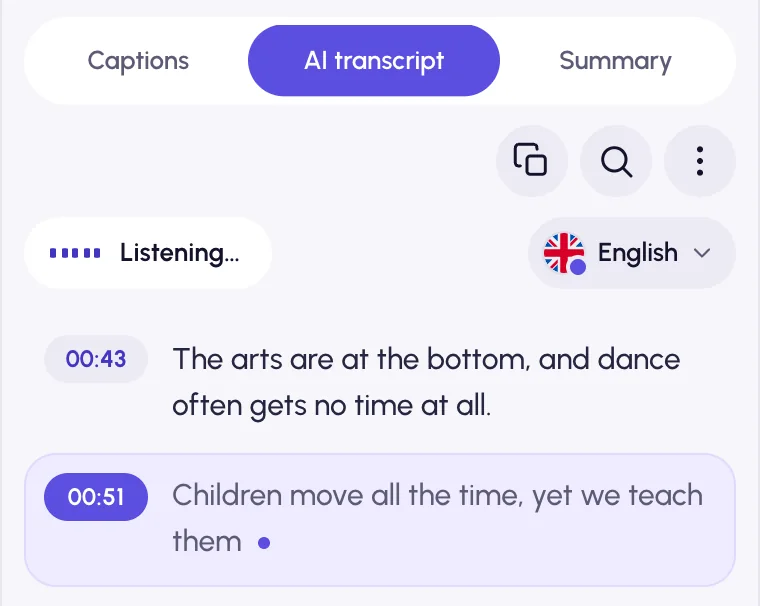
Pro Transcription listening: new lines with timestamps appear while the video playsPro Transcription listening: new lines with timestamps appear while the video plays
Summary

Read the whole video in 30 seconds

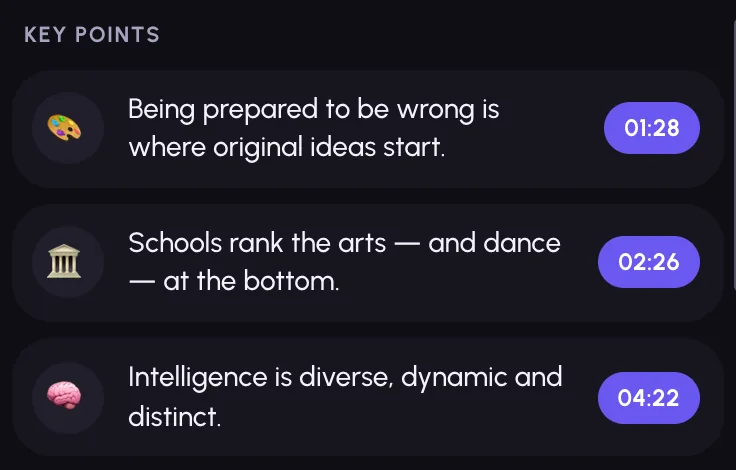
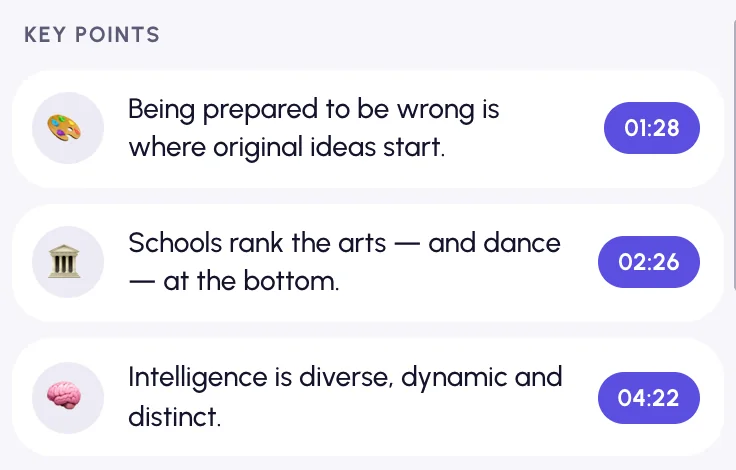
One click gives you a headline, a one- or two-sentence summary and 3–5 key points, each with an emoji and a timestamp you can click. Summaries are available in 52 languages.

Summaries are written by Google Gemini through our server. There is nothing to choose or set up.

Top of a summary card: the headline written for the videoTop of a summary card: the headline written for the video
Key points of a summary: an emoji, the point and a timestamp that jumps to that momentKey points of a summary: an emoji, the point and a timestamp that jumps to that moment
Night Ride design

Made to sit next to the video

Dark by default, with a light theme when you want it. On YouTube and Twitch the panel docks beside the player. Elsewhere it floats: drag it, resize it, fold it into a small tab at the edge, and it follows the video into fullscreen.

Also inside
  • Speaks your language · 19 interface languages

    From English, Español and Русский to 日本語, हिन्दी and العربية (right-to-left included). It follows your browser, and you can switch in one click without reloading.

  • Jump, find, take it with you · Navigate · search · export

    Click any timestamp to jump to that moment. Search with match highlighting. Copy the text with or without timestamps, or download it as TXT, SRT or VTT.

  • Keeps listening when Chrome can’t · Automatic backup

    If Chrome’s speech recognition doesn’t work for a video, Video Transcriber switches to Local Whisper by itself. On a live stream outside YouTube the AI takes over first, and Local Whisper only if the AI can’t. The model downloads once, with a progress gauge, then runs on your computer.

  • Made to sit next to the video · Night Ride design

    Dark by default, with a light theme when you want it. On YouTube and Twitch the panel docks beside the player. Elsewhere it floats: drag it, resize it, fold it into a small tab at the edge, and it follows the video into fullscreen.

Privacy

Saved only in your browser

Transcripts, summaries and translations are saved only in your browser. For a cloud summary, a question to the video or a translation, we send the transcript text to Google Gemini through our server, which doesn’t store it. For fast transcription, short compressed pieces of the video’s audio go the same way to be turned into text, and aren’t stored either. Chrome’s own speech recognition may send audio to Google when no on-device language pack is installed.

Transcripts, summaries and translations are saved only in your browser, and our server stores neither your audio nor your texts. What each feature sends is in the Privacy Policy.

  • No ads
  • No trackers or analytics
  • Nothing sold
Read the Privacy Policy

Live streams

Joined late? Catch up in a minute.

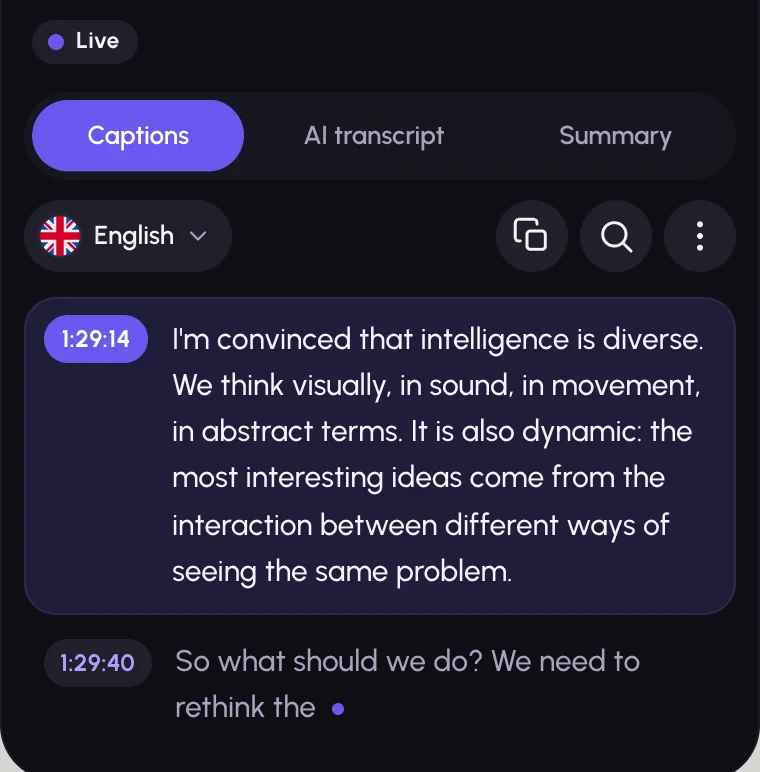
On a live stream the panel switches to live mode. Pro Transcription writes the text as the stream plays, and the transcript keeps growing while you watch.

  1. 1

    Follows the stream

    The panel marks the stream as live and adds each line as it is said. The player’s own button takes you back to the live edge.

  2. 2

    Clickable timestamps

    Jump back to any line while that moment is still in the stream’s rewind buffer.

  3. 3

    Summaries of the last minutes

    Summarize the whole stream or only the last part:

    • 5 min
    • 10 min
    • 15 min
    • 30 min
    • 60 min
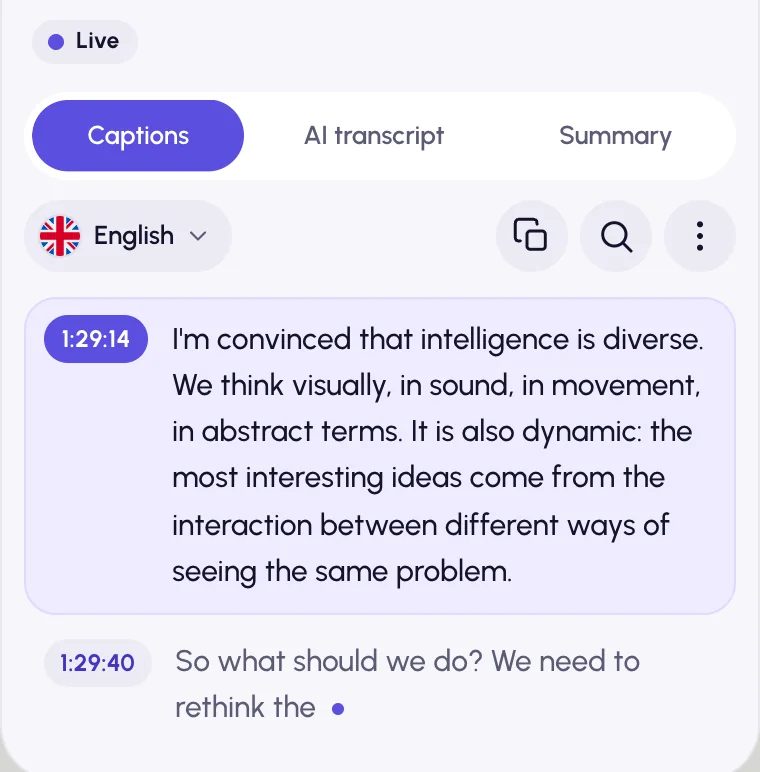
The panel on a live stream: a “Live” note and a transcript that keeps growingThe panel on a live stream: a “Live” note and a transcript that keeps growing

How it works

Three steps, no sign‑up

  1. 01

    Add to Chrome

    Install it from the Chrome Web Store. No sign‑up is needed.

  2. 02

    Open any video

    The Video Transcriber panel appears next to it. On YouTube and Twitch it docks beside the player; on other sites it floats.

  3. 03

    Read, transcribe, summarize

    Read the captions, start Pro Transcription when there are none, or get a summary. Click a timestamp to jump.

ShortcutsAlt+Shift+Vshow or hide the panelAlt+Shift+Tstart or stop Pro Transcription

Pricing

Simple pricing

Captions are always free. Try Pro Transcription or a summary twice, free, then pick a plan.

Upgrade inside the extension after your free uses

Lifetime

Best value

$99one-time

Pay once, use forever

  • Unlimited Pro Transcription and AI summaries*
  • Any site, live streams, videos of any length
  • Chrome speech recognition with the Local Whisper backup, and Gemini summaries
  • For as long as Video Transcriber is offered

Yearly

55% OFF

$3.99/month

$47.88 billed yearly

  • Everything in Lifetime, renewed yearly
  • Cancel anytime; access lasts until the end of the paid year

Monthly

$8.99/month

Billed every month

  • Everything in Lifetime, renewed monthly
  • Cancel anytime; access lasts until the end of the paid month

Free

$0forever

  • Transcription tab: the video’s captions, no limits
  • Search, click-to-seek, copy, export TXT/SRT/VTT
  • 2 free Pro or Summary uses
  • No sign‑up
  • What counts as a use: one feature (Pro Transcription or Summary) on one video. Running it again on the same video is free, and a run that fails costs nothing.
  • Buying: you upgrade inside the extension. Sign in with Google, then pay securely through Stripe. Your plan belongs to your Google account, so sign in with it on any computer.
  • *Fair use: up to 200 cloud summaries or questions and 10 hours of fast transcription per account per day. Past that, Pro Transcription runs in real time while the video plays, with no daily cap.
  • Not satisfied? Full refund within 14 days
  • No risk

Prices in USD. Refund Policy

FAQ

Questions, answered

Contact us

Is Video Transcriber free?

Yes. The Transcription tab (the video’s own captions) is free with no limits, and so are search, copy and export. Pro Transcription and AI summaries include 2 free uses. After that, you can pick Lifetime, Yearly or Monthly.

What counts as a “use”?

One feature on one video: one Pro Transcription or one summary. Running the same feature again on the same video is free. A use is only counted when it works, so a failed start or a stop before any text appears costs nothing. Paid plans don’t count uses.

Which sites does it work on?

Any site that plays video in a standard HTML5 player: YouTube, Twitch, Vimeo, Kick, course platforms, webinars, news sites and more. DRM-protected players, such as paid movie streaming, block audio capture, so Pro Transcription can’t run there.

Does it work with live streams?

Yes. On a live stream the panel switches to live mode, and Pro Transcription writes the text as the stream plays. A summary can cover the whole stream or just the last 5–60 minutes.

How fast is Pro Transcription?

Usually 1–3 minutes for a whole video, with no need to play it: a gauge shows the progress, then the whole transcript is there. Live streams, and videos where the fast mode can’t reach the audio, are transcribed in real time while they play.

Show 7 more questions
Which languages are supported?

The interface is available in 19 languages. Summaries can be written in 52 languages. Captions come in whatever languages the video has. Pro Transcription supports the languages of Chrome speech recognition and Whisper.

What happens to my audio and transcripts?

Transcripts, summaries and translations are saved only in your browser. Fast transcription sends short compressed pieces of the video’s audio to Google Gemini through our server, which doesn’t store them. In real time, Local Whisper never sends audio anywhere, and Chrome speech recognition runs on your device when Chrome has the language installed (otherwise Chrome sends the audio to Google’s speech service). Summaries, questions and translations send the transcript text to Google Gemini through our server, which doesn’t store it; text from Chrome speech recognition goes the same way to get punctuation. See the Privacy Policy for details.

Does it work offline?

Partly. The captions tab needs only the video site itself. Pro Transcription runs on your device when Chrome has the language, and Local Whisper (used automatically when Chrome can’t help) works offline after a one-time download. Fast transcription, summaries and translation need the internet: Gemini does them on our server.

Do I need an account?

Not for the free tier: just install it. To buy a plan, sign in with Google, so the plan is tied to your account and works on any computer where you sign in.

How do refunds work?

If you’re not satisfied, write to [email protected] within 14 days of the payment and we’ll refund it in full. See the Refund Policy.

How do I cancel a subscription?

Open the account menu in the panel and choose “Manage subscription”. Stripe’s page opens, and you can cancel there in a couple of clicks. You keep access until the end of the period you’ve paid for.

Does it work in Firefox, Safari, Edge or on mobile?

Video Transcriber is built for Google Chrome on desktop (version 138 or newer). Firefox, Safari and mobile browsers aren’t supported. Other Chromium-based browsers aren’t officially supported, and some engines are Chrome-only.

Your next video, as text.

Install in a few seconds. Captions are free with no limits, and your first 2 AI uses are on us.

  1. 1Open Video Transcriber in the Chrome Web Store
  2. 2Click Add to Chrome, then Add extension
  3. 3Pin it: click the puzzle icon next to the address bar, then the pin